
Share a document
Invite people to a project or share a public link, and learn what each option lets reviewers do.
Choose how to share
| Public link | Invite to the project | |
|---|---|---|
| Account needed | No | Yes |
| What the person sees | One document | The whole project |
| Can comment | If you allow it | Yes |
In these docs, guest means someone you invited to a project. People who open a public link are people with the link.
Reviewers see the rendered document, not the source file, unless you turn on MCP access for them (see Invite people to a project). Reviewers never need a paid account.
Share with a public link
Anyone who has the link can open the document without an account.
To create a link:
- Open the document in the viewer.
- Click Share.
- Click Create link.
- Click Copy link and send it.
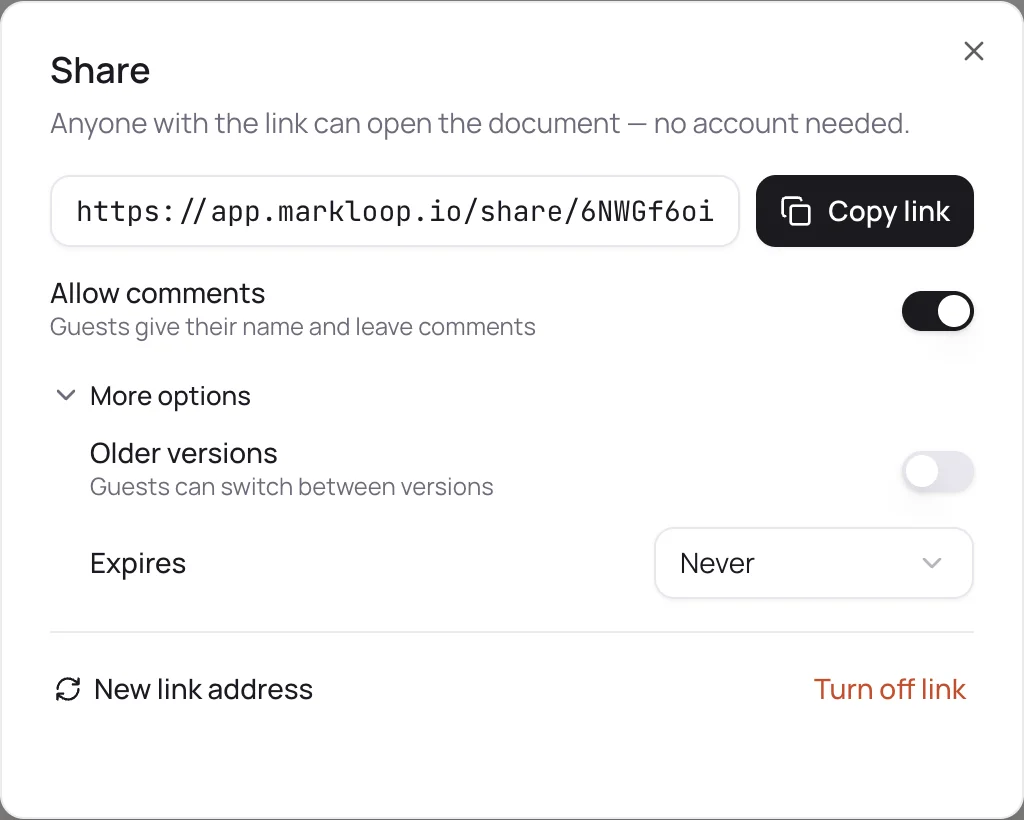
One link covers every version of the document and always opens the newest one, so you don't send a new link when you publish a new version.
Link settings
- Allow comments: people with the link enter their name and leave comments. This is on for a new link. Turn it off to make the link view-only.
- Older versions (under More options): people with the link can switch between versions. This is off by default.
- Expires (under More options): pick a date after which the link stops working. The default is Never.
Turn off or replace a link
- To stop all access, click Turn off link. Access ends immediately, and only project members can still see the document.
- To replace the address, click New link address. The old link stops working.
Only a project owner or a workspace admin can create or change links.
Invite people to a project
Use an invitation when someone needs the whole project, for example a client with several documents.
- Open the project and click People.
- To add a colleague who is already in your workspace, click Add a team member.
- To invite someone from outside, enter their email under Invite a guest by email and click Invite.
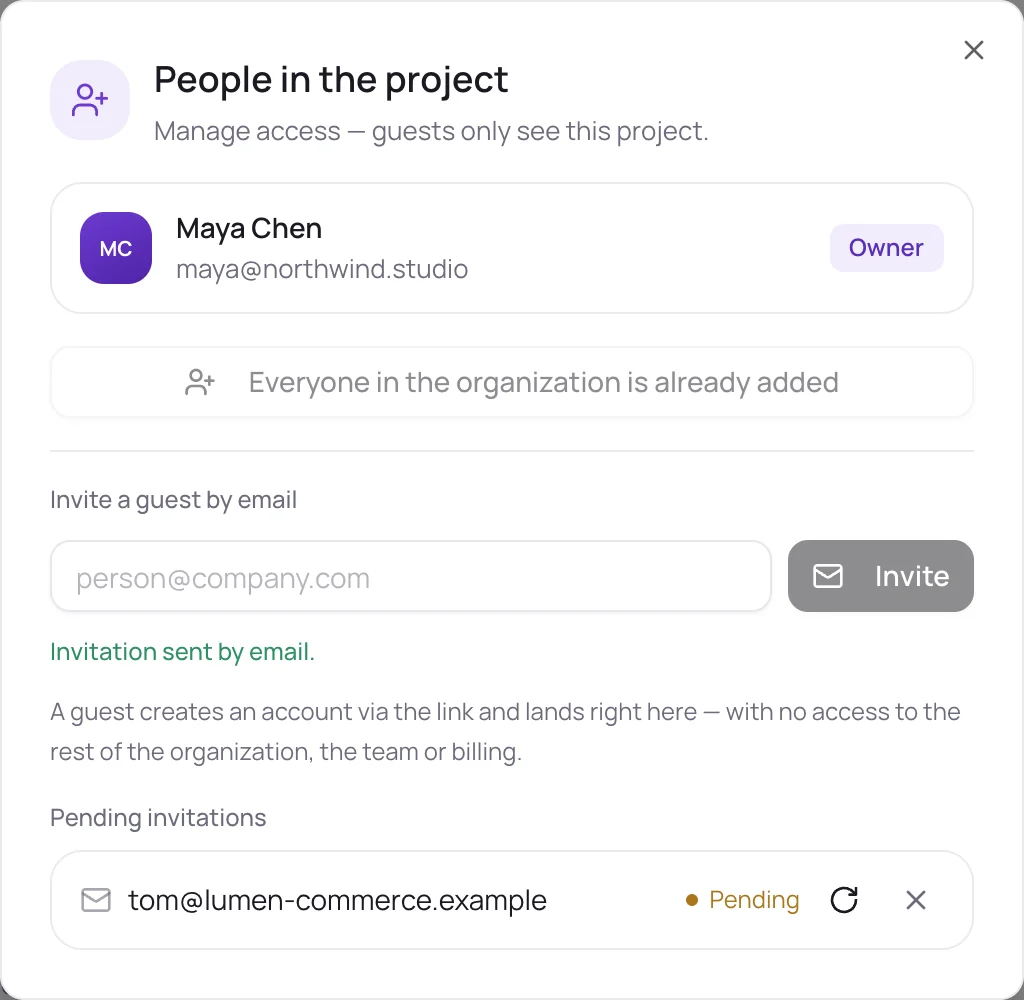
The guest gets an email, creates an account with it, and lands in the project. Guests see only the projects they were invited to, not the rest of your workspace, your team list or billing. They can read, comment and reply, but they can't change documents.
In People, you can also:
- Turn on MCP access for a reviewer. Their AI agent can then pull the project's documents, including the source files, and add comments and replies. It still can't upload or change files.
- Make a guest an Editor. Editors can upload files and publish versions. The person also joins your team list, and you can add them to other projects.
- Remove someone with the remove button next to their name. A removed guest must be invited again.
What reviewers can do
- Turn on Comment (bottom right of the document, or press C) and click an element to comment on it. Press Esc to leave comment mode.
- Select text and click Comment on selection.
- Reply in threads.
- Print the document or save it as a PDF with Print / save as PDF. Comments don't appear in the printout.
Send reviewers to For reviewers for the full walkthrough.
Limitations
- A public link is not private. Anyone who gets the link can open it. Share it only with people you trust, and turn it off when you're done.
- People with the link can't resolve, edit or delete threads, and they see open threads only.
- People with the link can start new threads only on the current version. They can still reply to open threads from older versions.
- A page opened from a public link shows a new version only after a reload. Nobody is notified about a new version.
- The name someone types on a public link is saved in their browser for that link. It is not a verified identity.
- Invitations by email always need an account. Only the public link works without one.