
HTML to Google Docs: How to Convert It, What Breaks, and When to Send a Link Instead (2026)
By Marcin, founder of Markloop · Tested September 2026
Short answer: upload the .html file to Google Drive and open it with Google Docs; Drive converts it. In our test, text, headings, lists, links, tables and embedded images came through, but cards side by side, boxes, an SVG chart, a collapsible section, a button and the web font did not. That's fine for a text-heavy document; for a designed page your AI made, where you want people's comments, send it as a link instead.
What we tested
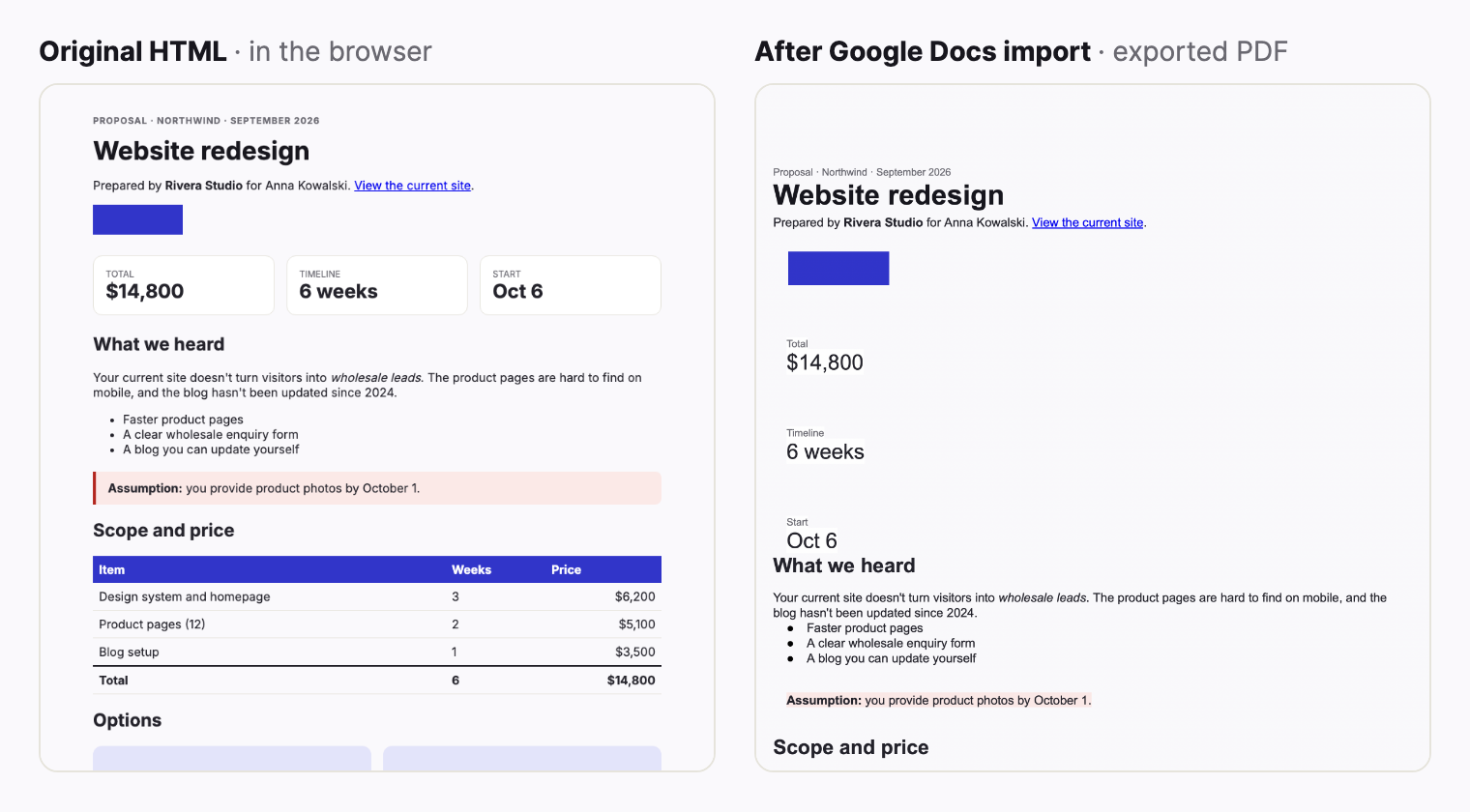
AI tools now write a lot of documents as HTML: ChatGPT and Claude produce proposals, reports and plans as designed pages, and people often want them in Google Docs because that's where their client or team already works. So we took a typical AI-made page - a client proposal with a price table, three stat cards, two option cards, a callout box, a bar chart, a logo, a collapsible section and a button - uploaded it to Google Drive, let Drive convert it to a Google Doc, and exported the result as a PDF to see exactly what survived.
How to convert HTML to Google Docs
1 · Upload the file to Google Drive (what we tested)
- Save the page as a single .html file. If your AI showed it in a preview, ask it for the file.
- In Google Drive, choose New › File upload and pick the file.
- Right-click the uploaded file and choose Open with › Google Docs. Drive creates a Google Doc next to the original.
If you do this often, turn on "Convert uploads to Google Docs editor format" in Drive's settings; .html uploads are then converted automatically.
2 · Copy and paste from the browser
Open the page in your browser, select a section, and paste it into a Doc. It's quick for a few paragraphs or one table. We didn't test it on the full page, so check the result before you send it.
3 · Ask your AI for a Docs-friendly version
If you already know the document will live in Google Docs, ask for that from the start. Claude's Docs template exports straight to Google Docs. With any AI you can ask for a Word file, or for simple HTML that converts cleanly (the prompt is below).
What survived and what broke
| In the HTML | After converting to Google Docs |
|---|---|
| Headings, bold, italics, links | Kept |
| Bulleted and numbered lists | Kept |
| Price table with a colored header row | Kept, including colors and borders; columns became equal width, and it split across two pages |
| Logo embedded in the file as a PNG | Kept |
| Three stat cards in a row | Stacked vertically as plain text, borders and bold numbers gone |
| Two option cards side by side | Stacked, card headings lost their style, backgrounds became text highlights |
| Callout box with a colored border | Border gone; the background became a highlight behind the text |
| Bar chart drawn in SVG | Gone. Only its labels remained, run together: "NowMonth 3Month 6" |
| Collapsible "Risks" section | Always open, as plain text |
| Button with a click action | Plain text, nothing happens |
| Web font (Inter), small caps label, code | Replaced by Arial; uppercase styling and monospace code lost |
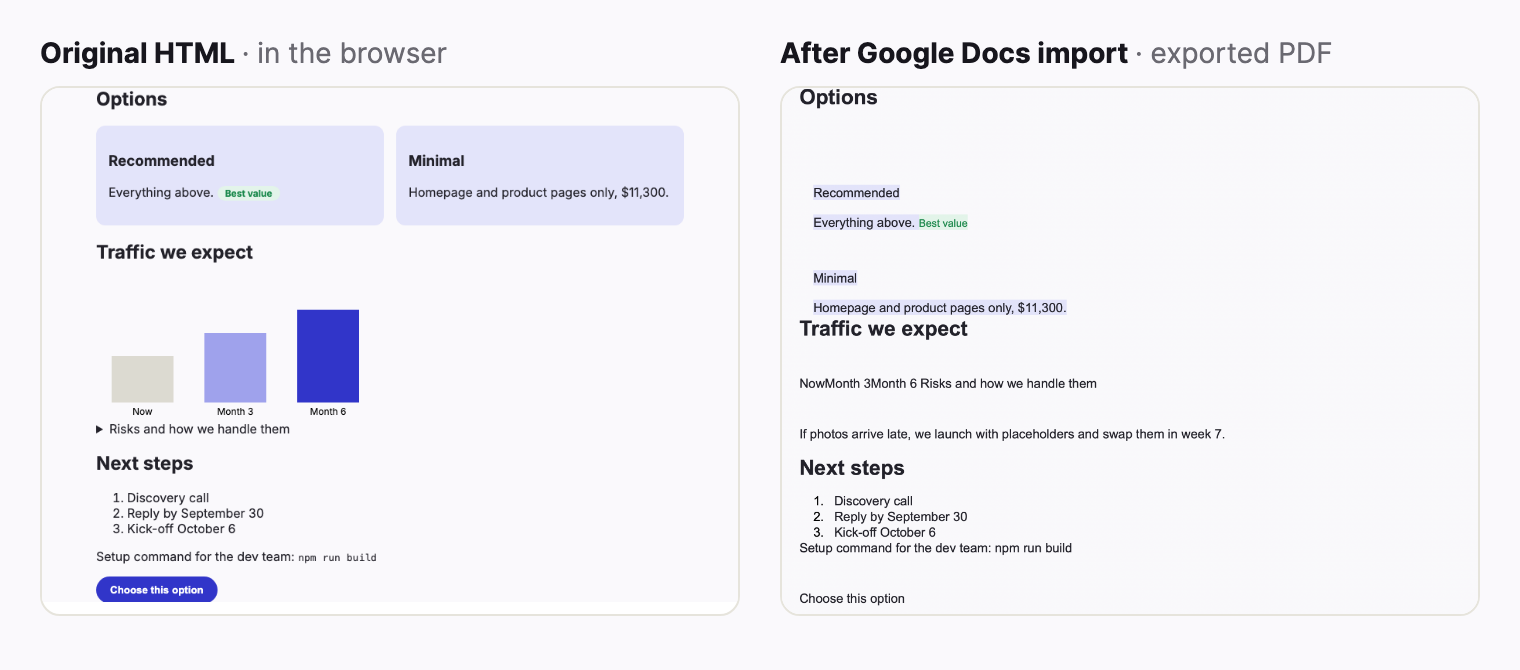
In short, Google Docs keeps what a word processor can represent - text, lists, tables, images - and drops page layout. Anything that sits side by side, in a box, or draws itself with code doesn't have a Docs equivalent.
How to get HTML that converts cleanly
If the document is going to Google Docs anyway, give your AI the constraints before it designs anything:
Rewrite this page so it converts cleanly to Google Docs: one column; headings, paragraphs, lists and real tables only; no side-by-side cards or boxes; render every chart as an embedded PNG image, not SVG; no collapsible sections, buttons or custom fonts.
In our test the embedded PNG logo came through untouched, so charts rendered as images should survive where SVG charts don't. You lose the interactive parts, but the client gets a document that looks the same in Docs as in your preview.
When Google Docs is the right call, and when to send a link
Use Google Docs when the document is mostly text, when the client wants to edit or suggest wording directly, or when their team already reviews everything in Docs. Suggested edits, version history and comments in the margin work well for that, and nobody has to learn anything new.
Send a link when the value is in the design: a proposal with a price summary up top, a report with charts, a plan with options side by side. Converting it throws that away, and your AI then has to read comments off a flattened copy that no longer matches the page it made.
That second case is what Markloop is for. Your AI publishes the HTML file at one link, people comment on the exact spot they mean and discuss it in threads, and your AI pulls the comments back and publishes the next version at the same link. Nothing is converted, so the charts and layout stay as your AI made them. If the client needs a file at the end, "Print / save as PDF" gives a clean PDF of any version. For a full round with a client, see how to write a client proposal with AI and get comments on one link; who can see your link and where your data lives is in the FAQ.
No setup needed to try it: download the HTML file your AI made and upload it to Markloop. Or connect Claude, ChatGPT, Cursor or Grok once (setup is a one-time step, shown in the app after signup) and ask your AI to publish. Watch the 2-minute walkthrough.
FAQ
Can Google Docs open an HTML file?
Yes. Upload the .html file to Google Drive and choose Open with › Google Docs, or turn on "Convert uploads to Google Docs editor format" in Drive's settings. Drive converts the file into a Google Doc; the page layout doesn't carry over.
Why did my chart disappear when I converted HTML to Google Docs?
Charts drawn in SVG have no Google Docs equivalent, so the conversion drops them and keeps only their text labels. Ask your AI to render charts as embedded PNG images instead; in our test an embedded PNG image came through unchanged.
Can I turn a Google Doc back into HTML?
Yes: File › Download › Web page (.html, zipped) gives you an HTML file plus an images folder. It won't bring back layout that was lost in the first conversion.
What's the best way to paste ChatGPT or Claude output into Google Docs?
For plain text and tables, copy and paste works. For a designed page, either ask the AI for a Docs-friendly version (one column, real tables, charts as PNG images) or keep the page as HTML and share it as a link.
Keep the page your AI designed
Publish the HTML at one link, let people comment on it as it is, and have your AI pull the comments into the next version.
14-day free trial · No credit card required · Reviewers always free
Related: How Claude artifacts work · How to write a client proposal with AI · How to write a client report with AI · HTML is the new Markdown