
How to Get Comments on a Cursor Canvas (2026)
By Marcin, founder of Markloop · Last verified September 2026
Short answer: you can't. A shared Cursor canvas opens only for members of your Cursor team, read-only, and nobody can comment on it. To get feedback from a designer, a client or beta users, ask the agent to save the canvas as a standalone HTML file, publish that file to Markloop from Cursor, and pull the comments back into your chat.
What shared canvases can and can't do
Cursor shipped shared canvases on 20 May 2026, and inside a team they work well: hit Publish, copy the link, and a teammate opens a live snapshot in the browser. Cursor's docs say only members of your team can open a share, and publishing needs a paid plan and a team. So there's no link you can send a client or a beta user. Cursor staff said on the forum in June they're "looking at ways to expand this", but it's still team-only.
| Capability | Status (September 2026) |
|---|---|
| Publish canvas to a link | ✓ since 20 May 2026, paid plans, must be on a team |
| Someone outside your Cursor team opens it | ✗ team-only, no public link |
| Viewer comments on the canvas | ✗ read-only |
| Design Mode annotations (4 June 2026) | author-only, inside the IDE - reviewers never see them |
| Shared Canvases page on the dashboard | lists only canvases you published, not your teammates' - no review |
In practice a teammate opens the canvas, spots a problem in the pricing table, and tells you in Slack. A client or a beta user can't open it at all, so they get a screenshot and reply by email. Either way you re-type their words into Cursor, guess which element they meant, and do it again next round.
Turn the canvas into an HTML file with one prompt
There's no export button on the canvas toolbar, and the canvas source won't help. According to threads on the Cursor forum, Cursor keeps it outside your repo, as a .canvas.tsx file under ~/.cursor/projects/<workspace>/canvases/. It imports from cursor/canvas, which exists only inside the IDE, so the file doesn't render anywhere else.
The agent that built the canvas can write the same content out as plain, self-contained HTML:
Save this canvas as a standalone HTML file in the project root.
Open the file in a browser before you send it, to check nothing got lost on the way out of the canvas.
Get comments on it from inside Cursor
Markloop publishes the HTML file at one link, people comment on it in the browser, and your agent pulls the comments back into Cursor chat. The next version goes up at the same link.
1 · Connect Markloop to Cursor
Add one entry to ~/.cursor/mcp.json. Cursor opens a browser sign-in, and Settings → MCP then shows Markloop as Connected.
{
  "mcpServers": {
    "markloop": {
      "url": "https://app.markloop.io/api/mcp"
    }
  }
}
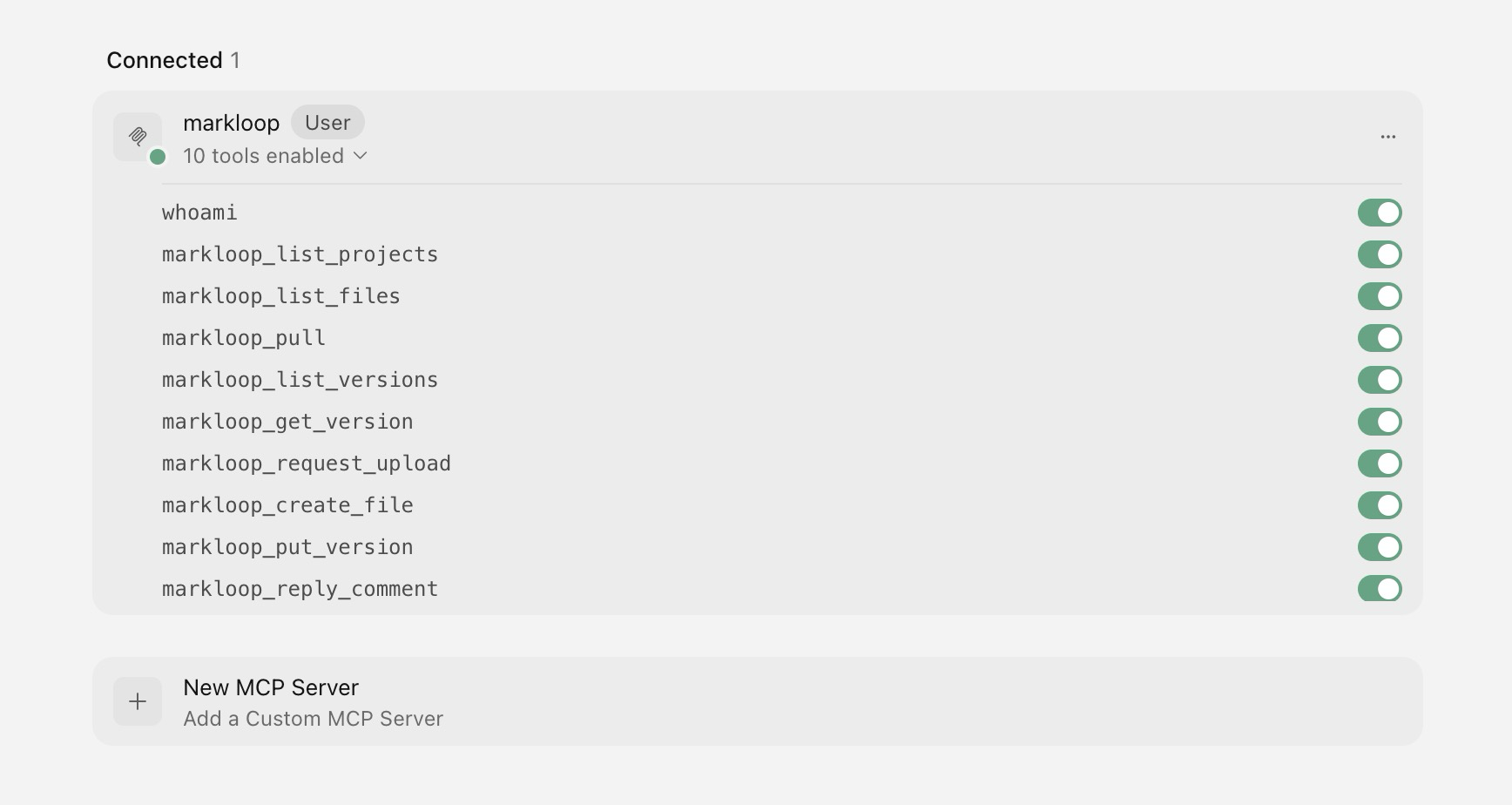
2 · Publish the spec and send the link
Say your canvas is an onboarding spec and your designer isn't on your Cursor team. In the chat:
Save this canvas as onboarding-spec.html and publish it to my Markloop project.
Turn on commenting for the link and send it. Your designer types a name and comments in the browser, no account.
3 · Pull the comments and publish v2
When comments come in:
Pull the comments on the onboarding spec, make the changes, and publish the next version.
Each comment arrives with the text it was left on and the element it points at. The agent marks which ones it addressed, and the rest stay open for the next round.
No setup needed to try it: download the HTML file your AI made and upload it to Markloop. Or connect Claude, ChatGPT, Cursor or Grok once (setup is a one-time step, shown in the app after signup) and ask your AI to publish. Watch the 2-minute walkthrough.
Sending the doc to a client instead? See how to write a client proposal with AI and get comments on one link. For who can see your link and where your data lives, see the FAQ.
FAQ
Do reviewers get notified when I publish the next version?
No, there's no email about new versions. The share link opens the latest version, so they see v2 when they reload it. You get a digest email per document when new comments come in, once you turn it on in Settings.
Can I ask my designer a question in the doc?
Yes. Leave a normal comment on the spot you're asking about, and they reply in the thread. Your agent can read the thread and reply in it from Cursor.
What does Markloop get from my project?
Markloop stores the documents your agent publishes and the comments on them. No AI runs on Markloop's servers: the Cursor agent makes the edits on your machine. Markloop is hosted in Europe.
How much does it cost?
Solo is $19/month for one person and Team is $49/month for up to five. Reviewers never pay. There's a 14-day free trial, no card required.
Shared a canvas and got silence back?
Publish the HTML from Cursor, send one link to people outside your team, and pull their comments back into your chat.
14-day free trial · No credit card required · Reviewers always free
Related: What Claude artifacts are · Claude artifact sharing options compared · How to share Claude artifacts outside your organization · HTML is the new Markdown - reviewing it is the missing half